
Multicolor divider line
FDX LITE

FDX LITE

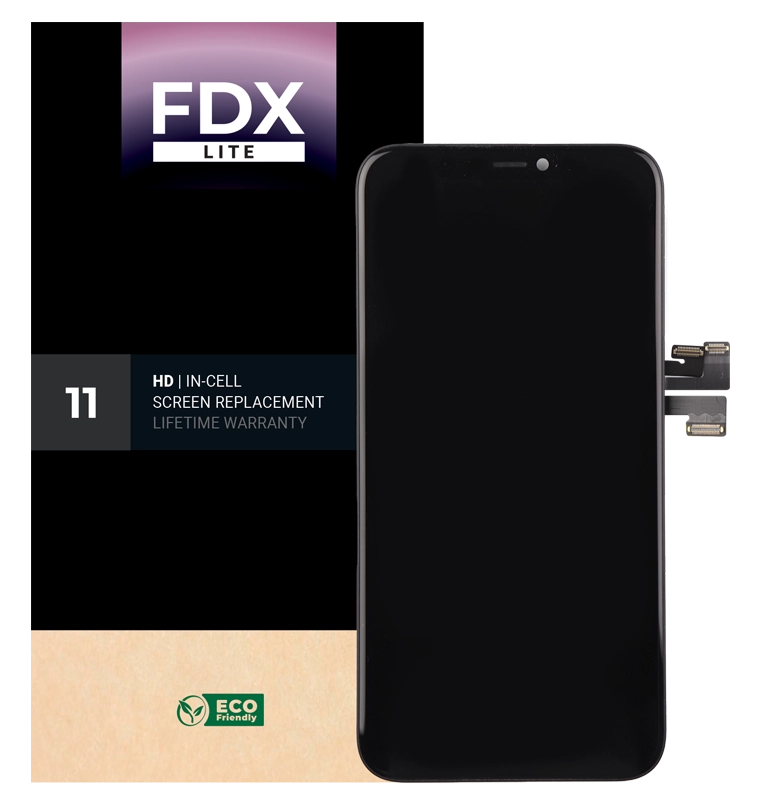
FDX Lite is an entry-level in-cell display with HD resolution, suitable for basic repairs in the lower price range. These screens are also rigorously tested to ensure stable operation and reliable performance, making FDX Lite a practical and controlled choice for cost-conscious applications within the in-cell segment.
Features FDX LITE
Pixel resolution High Definition (HD)
Refresh rate Fast response
Includes Camera holder, earpiece mesh and proximity bracket
Temperature Low and controlled
360° Polarized Supported
Oil resistant coating Supported
Anti-glare Supported
Front Glass Anti-dust and fingerprint oil
Inspection Tested before shipment
Warranty Covered
Service Pack
Service Pack parts are original and manufactured in a certified environment by the device's original manufacturer.
Pulled
Pulled parts are 100% authentic and sourced from original pre-owned devices. They undergo strict testing and inspections to ensure the highest quality.
Refurbished
Refurbished parts have been removed from an original used phone, but the front glass has been replaced with glass that is equivalent to the original, while all other materials have remained authentic.
OEM-Equivalent
OEM-Equivalent parts are professionally assembled by a third party using components and materials equivalent to those of the original manufacturer. They are tested for basic functionality and offer a reliable alternative for a cost-effective repair.
FDX ULTRA
FDX Ultra is a Soft OLED LTPS display with bright, vivid colors and a smooth, precise touch. Thanks to its flexible COP design, the screen is thin, light and extra break-resistant. Each batch is rigorously tested for color, stability and performance, so professionals can count on reliable and consistent quality.
FDX PRO
FDX Pro is a Hard OLED display with sharp image quality, vibrant colors, and fast, precise touch. Thanks to the COF design, it delivers reliable performance in everyday use. Each batch is tested for stability and uniformity, so technicians can count on consistent quality at a competitive price.
FDX ELITE
FDX Elite is a premium in-cell display, developed in collaboration with the manufacturer for optimal quality. We continuously improve it through customer feedback and our expertise. This display is our most expensive option, but with the associated quality and service for a worry-free customer experience.
FDX PRIME
FDX Prime is a reliable standard in-cell solution, directly sourced from carefully selected manufacturers. The displays meet high in-cell quality standards and are rigorously tested to ensure consistent performance, reliability, and long-term usability. FDX Prime is suitable for daily professional use within the in-cell segment.

16-02-2026

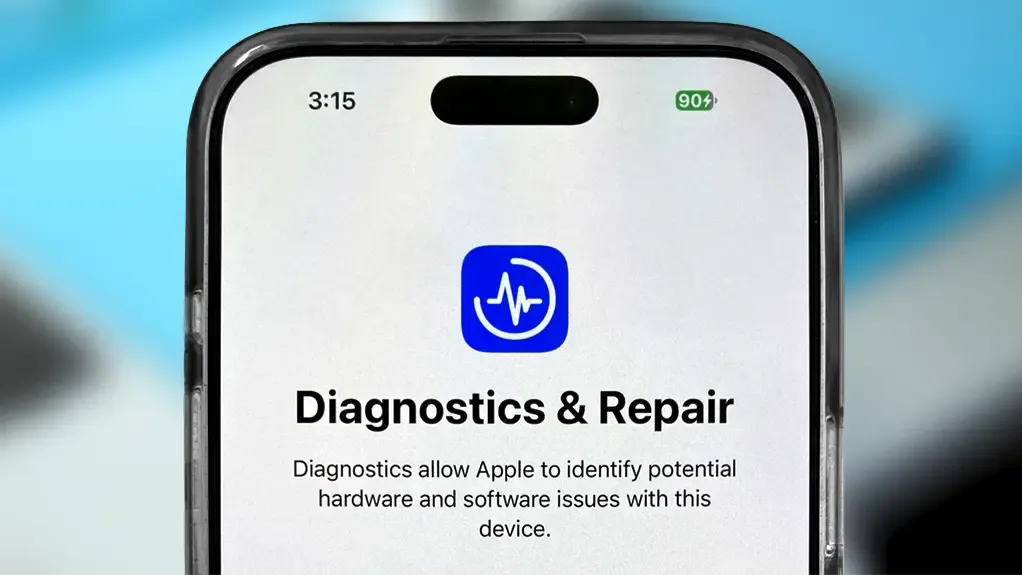
Apple Diagnostics on iPhone: Performing a Step‑by‑Step Hardware Test

Apple Diagnostics on iPhone: Performing a Step‑by‑Step Hardware Test

Run Diagnostics is een officiële Apple-functie waarmee technici de hardware van een iPhone kunnen testen. In deze blog leggen we stapsgewijs uit hoe je de diagnostische modus activeert en de tests uitvoert. Voor uitgebreide achtergrondinformatie over de voordelen en waarom technici deze tool gebruiken, verwijzen we naar onze andere blog: The Importance of Apple Diagnostics for iPhone Technicians.


1. Preparation

  • Make sure your iPhone is not running a beta version of iOS.
  • Update to the public version if necessary.
  • Ensure the battery is charged to at least 25%.
  • Turn off the iPhone: Press and hold both the Volume Up and Volume Down buttons simultaneously. Slide to “Power Off.”


2. Activate Diagnostic Mode

  • Press and hold both the Volume Up and Volume Down buttons simultaneously.
  • While holding these buttons, connect the charger.
  • Do not press the Power button.
  • Turn off the iPhone: Release the buttons as soon as the Apple logo appears.


3. Connect and Set Up

  • Disconnect the charger.
  • Tap “Continue.”
  • Connect to a Wi-Fi network.
  • Wait for a connection with Apple Support.
  • Tap “Agree” (if prompted).


4. Run Diagnostic Tests

  • Tap “Run Diagnostics.”
  • Follow the on-screen instructions.
  • Review the results carefully.


5. Exit Diagnostic Mode

  • Tap “Exit Diagnostics.
  • The iPhone will restart automatically.
  • Enter your passcode.


Banner 1.png 515.88 KB


Additional Tips for Technicians

  • Use a stable Wi-Fi connection.
  • Do not press any extra buttons.
  • Wait patiently during startup.
  • Take screenshots of the results for customer records.
  • Always test after a repair.
  • Make sure the battery is above 25% before starting.


Conclusion

Follow these steps carefully to perform Apple Diagnostics on iPhones from the iPhone 12 and newer. For more background information on the benefits, display checks, and transparency toward customers, please refer to our other blog: The Importance of Apple Diagnostics for iPhone Technicians.


Stay up to date with the latest developments and updates by reading our blogs and following us on LinkedIn.


Checkmark Order before 19:30, shipped the same day
Checkmark Premium Quality
Checkmark 15,000+ products, directly from stock